

Accept payments through Straumur via Vaultera Switch
This section gives you an overview of how to make payments via Straumur through Vautera Switch.

Activating Straumur via Vaultera Switch
Prerequisites
- You need to be registered with Straumur in order to proceed. In case you aren’t, you can quickly setup your Straumur account here.
- You should have a registered Vaultera Switch account. You can access your account from the Vaultera Switch control center→.
- Request the Straumur developer team to enable handling raw card data for your Straumur account via email (developers@Straumur.is). This will enable Vaultera Switch to securely handle your customer’s payment details.
- The Straumur API key and Account ID are available in your Straumur dashboard under Home page -> Developers -> API credentials.
- Select all the payment methods you wish to use Straumur for. Ensure that this is the same as the ones configured on your Straumur dashboard under Settings -> Payment methods
- To set webhooks, Navigate to the webhooks section of your Straumur dashboard (Developers -> Webhooks) and create a new standard webhook.
Straumur credentials
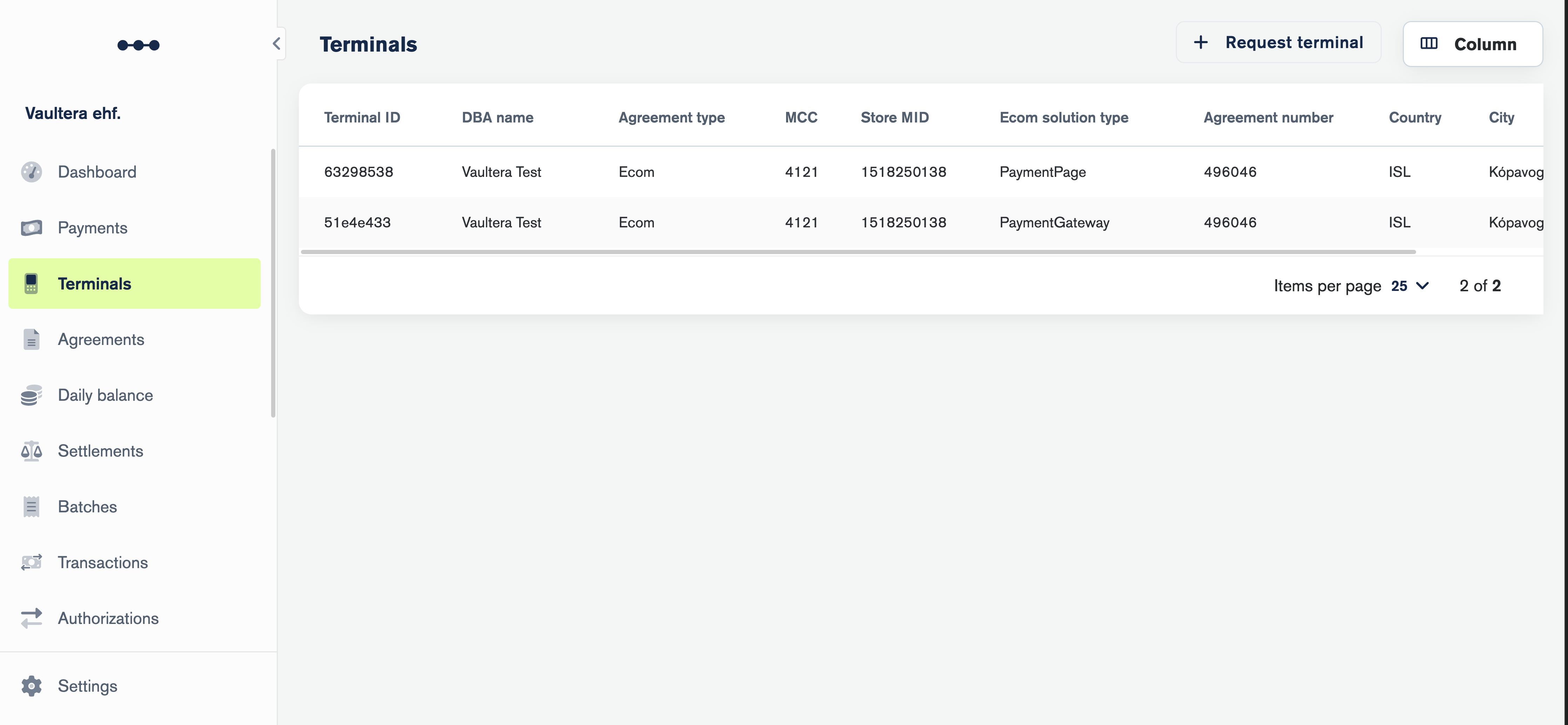
- The Straumur API keys and Terminals can be found in your Straumur dashboard under API and Terminal settings.

- To use the “Pay with Card Data” feature, you need to have a JWE (JSON Web Encryption) key configured for your merchant account. Contact us at developers@straumur.is to obtain your JWE key and get started.
- To encode your JWE key (certificate) in Base64, run the following command:
Test Cards
Use these Test Cards Here are the available test cards that you can use to make payment requests.Info
These cards can only be used for testing on our Staging environment.
Visa
MasterCard
Maestro
Apple Pay
To test Apple Pay you need to create a Sandbox on your own mobile device. For a list of test cards and instructions on how to add them to your device, please reference Apple Pay Developer Documentation - Sandbox Testing.Google Pay
To test Google Pay it is possible to add real cards to the wallet on your device and make payments that way. Those payments are only test payments and will not be charged. Another simple way to test is to enroll your wallet in Google’s Test card suite, which provides pre-configured test cards for different scenarios.Testing Notes
- 3DS Symbols: ✓ = 3DS authentication required, ⨯ = No 3DS authentication
- Environment: All test cards work only in Staging/Sandbox environment
- CVV: Use 737 for all test cards unless specified otherwise
- Expiry: Use 03/2030 or any future date in MM/YYYY format